
TFT Unlock Tool

TFT Unlock Tool helps with Android phone servicing on Windows. Explore supported brands, useful features, download details, and simple guidance for users.
TFT Unlock Tool (All Mobile)
TFT Unlock Tool is a Windows-based utility made for Android phone servicing. It brings several repair-related functions into one place. Technicians can use it to work with supported phones through different service modes. The tool is not meant for normal phone use. It is mainly useful when a device has a software issue or needs a specific servicing task. Depending on the phone model, it may offer functions related to FRP, screen locks, firmware, and device information. Support is not the same for every phone. The available options can change with the model, chipset, Android version, and security level. So, checking compatibility before starting any operation is important. For repair technicians, having these functions in one utility can save time. However, some operations can affect phone data or software. That is why the right procedure and compatible files matter.
What Is TFT Unlock Tool?
TFT Unlock Tool is a Windows-based program for Android phone servicing. It brings several software-related functions into one place. This can make certain repair tasks easier to manage from a computer. The program works with selected phone models and chipsets. Its available options can differ between devices. A function supported on one model may not work on another. It is mainly useful for tasks that go beyond regular phone settings. Depending on the device, it may provide options for FRP servicing, screen-lock work, firmware operations, and device information. The process normally involves connecting a supported phone to a Windows PC. A USB cable is used for the connection. The software can then identify the device and show the functions available for it.
Who Can Use This Tool?
It is mainly designed for mobile repair technicians and experienced Android users. Repair shops can also find it useful for supported devices. Beginners should be careful with advanced repair functions. Some operations can affect phone data or software. Checking the exact model and supported functions before starting is always a good idea.
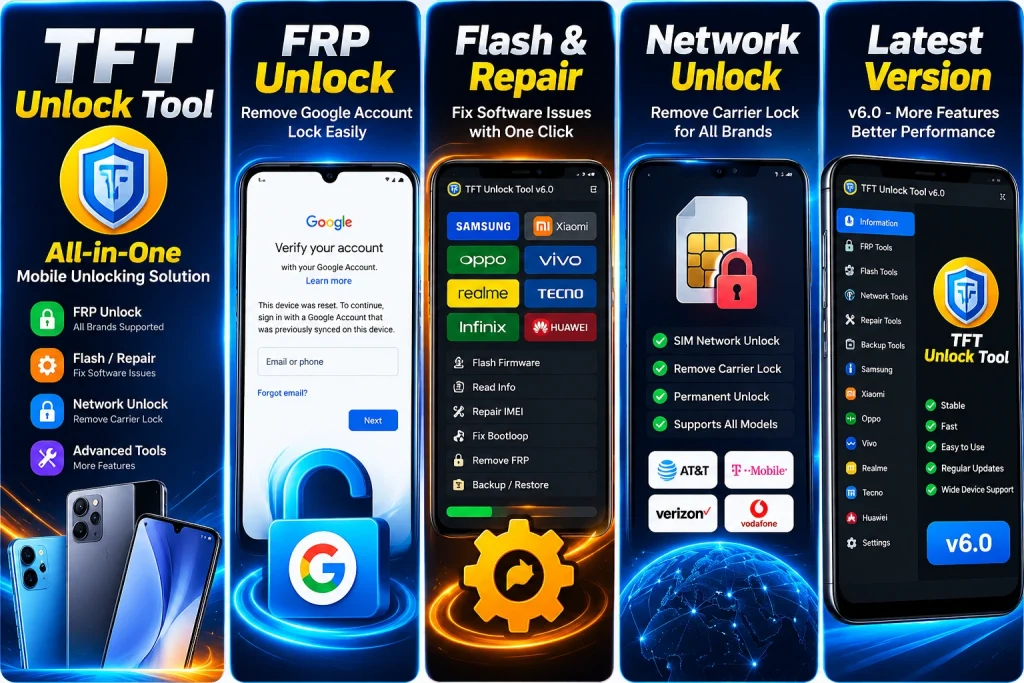
TFT Unlock Tool Features
The latest version of the TFT Unlock Tool brings several Android servicing functions into one Windows-based utility. It is designed to help with different software tasks on supported phones. The available options depend on the device model, chipset, Android version, and security level.
FRP Servicing
Factory Reset Protection is a security feature on Android devices. It can require the previous Google account after a factory reset. The tool includes FRP-related functions for selected devices. Compatibility should be checked before starting the process.
Screen Lock Services
Some supported devices offer options for handling certain screen-lock issues. These may include PIN, pattern, or password-related servicing. The available function depends on the phone and its software version. It should only be used on an authorized device.
Firmware Flashing
Firmware flashing replaces or restores the software installed on a phone. It can be useful when a device has certain software problems. The firmware must match the exact model. Using the wrong file can cause serious software issues.
Bootloader Operations
The bootloader controls the early startup process of an Android phone. Certain supported models provide bootloader-related functions. These operations can change the software state of a device. Users should understand the process before making any changes.
MediaTek Support
MediaTek powers many Android phones across different brands. The software includes servicing options for selected MediaTek devices. The available operations can differ between chipsets and models. Checking compatibility is important before connecting the phone.
Qualcomm Support
Qualcomm is another widely used mobile chipset platform. Selected Qualcomm-powered phones can be handled through supported servicing modes. The required connection method can vary by device. The correct drivers and mode may also be necessary.
Unisoc Support
Some budget and mid-range Android phones use Unisoc chipsets. Supported models can have dedicated servicing options. Support is based on the particular device rather than the chipset name alone. Always confirm the model before proceeding.
Device Information
Accurately identifying a phone is an important part of mobile repair. The utility can help users work with device information during supported operations. Details such as the model and connection status can help determine which function is appropriate.
Multi-Brand Support
The software works with devices from different Android manufacturers. This gives technicians a broader range of phones to work with. However, support is not identical across all brands. Individual models can have different available functions.
Software Repair
Some phone problems are caused by damaged or unstable software. Supported repair functions can help technicians troubleshoot certain software-related issues. The result depends on the device’s condition and the operation being performed.
USB-Based Servicing
The phone is generally connected to a Windows computer through USB. A suitable cable and the correct drivers help the computer communicate with the device. Connection problems can prevent the software from detecting the phone. A stable USB connection is therefore important.
Multiple Service Modes
Different Android phones use different communication modes during servicing. Depending on the model, this can include modes such as ADB, Fastboot, Download, or other manufacturer-specific modes. The required mode depends on the selected operation. Using the wrong mode can prevent the device from being recognized.
Regular Version Updates
New releases can add support for newer models and improve existing functions. They may also address compatibility issues found in earlier builds. For this reason, users should check the version before working on a newer phone. The latest release is not automatically compatible with every device.
Wide Device Coverage
One of the useful aspects of the software is its coverage across different Android brands and models. This can make it practical for technicians who handle various phones. Still, wide brand coverage should not be confused with universal support. The exact model and software configuration remain important.
TFT Unlock Tool Supported Devices
The TFT Unlock Tool 2026 supports a wide range of Android phones from different manufacturers. This makes it useful for technicians who regularly work with different brands. Support can vary from one model to another. The available functions may depend on the chipset, Android version, security patch, and software build. Checking the exact model before starting is always a better approach.
Samsung Phones
Samsung has a large selection of supported devices. Older and newer models may have different servicing options. It is important to check the exact model number first. This helps users choose a suitable function.
Xiaomi and Redmi Phones
Xiaomi and Redmi phones use different chipsets across their product ranges. Their available servicing options can therefore vary. Checking the model and chipset can help determine which functions are available.
Vivo and iQOO Phones
Vivo and iQOO offer many devices with different hardware configurations. Some models may support specific operations, while others may have fewer options. Always confirm the individual model before proceeding.
Oppo and Realme Phones
Oppo and Realme phones are common in mobile repair. Selected models can support different software servicing functions. Newer software versions may have different requirements. Checking current compatibility is recommended.
Tecno and Infinix Phones
Tecno and Infinix have many devices based on MediaTek and other platforms. Selected models can work with compatible servicing modes. The required process depends on the specific phone and chipset.
Motorola Phones
Selected Motorola devices are supported for certain software-related tasks. Available functions can differ between generations. The exact model should be checked before using any repair option.
OnePlus Phones
Some OnePlus models can be handled through supported connection modes. Their available functions depend on the device’s hardware and software. Newer models may have different requirements than older ones.
TFT Unlock Tool Chipset Support
Android phones do not all use the same chipset. This matters when a phone needs software servicing. Different chipsets can require different connection modes and repair methods. The TFT Unlock Tool download file works with selected devices based on several major chipset platforms. Support can still vary by model and software version. Checking the exact phone before starting is important.
MediaTek Devices
MediaTek chipsets are common in many Android phones. They are found in devices from brands such as Xiaomi, Tecno, Infinix, Oppo, and others. Selected MediaTek phones can offer different servicing options. The available functions depend on the chipset generation and phone model.
Qualcomm Devices
Qualcomm powers many popular Android smartphones. These include devices from brands such as Samsung, Xiaomi, OnePlus, Motorola, and others. Some Qualcomm phones use specific service modes during repair. The correct drivers and connection method may be needed for proper detection.
Unisoc Devices
Unisoc is also used in some budget and mid-range smartphones. Some supported models can be handled through compatible servicing functions. Support can differ between Unisoc platforms. The exact model should be confirmed before choosing an operation.
Why Does the Chipset Matter?
The chipset controls several important parts of how a phone communicates with a computer. It can affect the required drivers, connection mode, and available servicing options. This is why two phones from the same brand may not have identical support. Knowing the chipset can help users choose the right procedure and avoid unnecessary errors.
TFT Unlock Tool System Requirements
Before using the tool, it is worth checking your computer first. A suitable setup can help the program run smoothly and keep the phone connection stable.
The TFT Unlock Tool free access is designed for Windows computers. Your PC should have enough free storage for the program and any related files you may need during servicing.
Operating System
A supported Windows version is required. Using an updated Windows system can also help avoid compatibility issues with drivers and USB connections.
RAM
At least 4 GB of RAM is a practical starting point. More memory can be helpful when other programs are running at the same time.
Storage Space
Keep some free space on the system drive. You may also need additional storage if firmware files are required for a repair.
USB Port
A working USB port is necessary for connecting the phone. A direct connection to the computer is usually preferable to using an unreliable USB hub.
SB Cable
Use a good-quality cable that can maintain a stable connection. A damaged or loose cable can cause detection problems during servicing.
Device Drivers
The correct USB drivers may be needed for the computer to recognize the connected phone. Driver requirements can vary between manufacturers and chipsets.
Internet Connection
An internet connection may be useful for downloading drivers, updates, or other required files. Some functions can also have their own connectivity requirements.
Quick Requirements Checklist
| Requirement | Recommended Setup |
| Operating System | Compatible Windows version |
| RAM | 4 GB or more |
| Storage | Sufficient free space |
| USB Port | Working USB port |
| Cable | Reliable USB cable |
| Drivers | Correct device drivers |
| Internet | Recommended when required |
Meeting these requirements does not guarantee that every phone will work. Device compatibility still depends on the model, chipset, software version, and supported function.
How Does TFT Unlock Tool Work?
Using the TFT Unlock Tool APK starts with a simple connection. The phone is plugged into a Windows computer with a USB cable. Once the connection is ready, the tool tries to communicate with the phone.
The steps can be different for each device. A Samsung phone may need a different mode than a Xiaomi or Motorola phone. The chipset and Android version can also change the process.
Connect Your Phone
- First, connect the phone to the computer. Use a USB cable that is in good condition. A loose connection can cause trouble later.
- If the computer does not recognize the phone, check the cable and USB port. The required USB driver may also be missing.
Check the Device
- After the connection is made, the tool looks for the phone. It may show details about the connected device.
- Take a quick look at those details before doing anything else. Make sure the detected model matches the phone you are actually working on.
Choose the Correct Mode
- Phones can communicate with a computer in different ways. A device might use ADB, Fastboot, Download Mode, or another service mode.
- You do not have to choose all of them. The correct mode depends on the phone and the job you are trying to complete.
Pick the Required Option
- Once the phone is ready, select the function you need. Only the options supported by that particular device may be available.
- This is where it pays to be careful. If you are unsure what an option does, it is better to check first than to try it blindly.
Wait for the Process
- After starting the task, let the program finish its work. Some operations take only a short time. Others may take longer.
- Keep the phone connected while the process is running. Pulling out the cable halfway through can create software problems.
Check the Phone
- When everything is finished, check the phone. See if it starts normally and whether the problem you were working on has been resolved.
- If something went wrong, don’t keep clicking different options. Go back and check the model, drivers, connection mode, and compatibility first.
How to Install the TFT Unlock Tool?
Once you have the correct file, installing the TFT Unlock Tool online is fairly simple. Before you start, make sure your Windows PC has enough free space and that the necessary drivers are ready.
1. Download the Correct Version
Start by getting the version that fits your computer and repair needs. Check the release details before opening the file. Avoid packages from unknown sources, especially those that contain unrelated programs.
2. Extract the Downloaded File
The tool may arrive in a ZIP or RAR archive. If that happens, extract the files into a new folder on your computer. Keep everything in the same folder. Do not remove or move individual files, as this may cause the program to stop working correctly.
3. Install the Required Drivers
Your computer needs the right USB drivers to recognize the connected phone. The required drivers can vary depending on the brand and chipset. Install the appropriate drivers before connecting the device. This can help avoid detection problems later.
4. Open the Program
After extracting the files, open the program from its folder. Windows may show a security message when you run it. If that happens, make sure you trust the source of the file before continuing. Avoid installing extra software that is not related to the tool.
5. Connect Your Phone
Connect the supported phone to your PC with a reliable USB cable. Some devices may also require a specific service mode. Give the program a moment to detect the phone. If it does not appear, check the cable, USB port, and drivers.
6. Check the Device Details
Before choosing any repair option, look at the detected device information. Make sure the model matches the phone you are working on. This quick check can help prevent mistakes and failed operations.
7. Start the Required Operation
Choose the function that matches your task. Follow the instructions shown by the program and keep the USB connection steady. Do not unplug the phone while an operation is running. Interrupting some processes can cause software problems or data loss.
8. Check the Phone Afterward
Once the process finishes, check the phone carefully. Make sure it starts normally and that the intended task has been completed. If something goes wrong, avoid trying different options at random. Check the model, drivers, connection mode, and compatibility before trying again.
Does TFT Unlock Tool Work on Android?
TFT Unlock Tool is mainly a Windows-based program. It is not designed to run directly on Android phones. The tool works with Android devices through a Windows computer. You connect the phone using a USB cable. The program then communicates with the device for supported servicing tasks. It can work with many Android brands. However, support depends on the exact model, chipset, Android version, and tool release. So, you cannot normally install the Windows version directly on your Android phone. You need a compatible Windows PC to use its main functions. Before starting any repair task, check whether your specific phone model is supported. This can help avoid connection errors and unnecessary software problems.
Common TFT Unlock Tool Problems
Using TFT Unlock Tool does not always go smoothly. A phone may fail to connect, or a task may stop halfway. In many cases, the problem is something simple.
Phone Not Detected
If the phone does not appear in the tool, check the USB cable first. Try a different port if needed. A faulty cable can also cause connection problems.
Driver Issues
Sometimes Windows does not recognize the connected phone. This usually happens when the required driver is missing or not working properly. Reinstalling the correct driver can help.
Device Not Supported
Some models are not covered by every version. Even phones from the same brand can have different requirements. Check your exact model before starting a task.
Task Stops or Fails
A process may fail if the wrong option is selected. An incompatible tool version can cause the same issue. Check the device details and try again only when everything matches.
USB Connection Drops
Do not move the phone while a task is running. A loose cable can break the connection. This can interrupt the process and sometimes create software issues.
Most problems with TFT Unlock Tool come down to the device, drivers, cable, or compatibility. Checking these things first is usually the best place to start.
Advantages and Limitations of TFT Unlock Tool
Every phone servicing tool has its good and bad sides. The paid version of TFT Unlock Tool is no different. What works well for one user may not be as useful for another.
Advantages
- The tool supports many Android brands. This gives technicians more options when working with different phones.
- It also supports several chipsets, including MediaTek, Qualcomm, and Unisoc. This makes it useful for a range of devices.
- Another benefit is that many servicing functions are available from one program. You do not always need a separate tool for every basic task.
- Regular updates can also improve device support. New releases may add models or fix older issues.
Limitations
- The tool does not support every phone. Compatibility can change between models and software versions.
- Some functions may require activation or payment. Free access does not necessarily include every available feature.
- It also requires a Windows PC. You cannot simply install the main program on an Android phone.
- Some operations can affect phone data or software. That is why checking the model and making a backup beforehand is important.
Final Verdict
TFT Unlock Tool can be a useful program for Android servicing. It brings several functions into one place. That can save time for phone technicians. It also supports a wide range of brands and chipsets. But the tool has its limits. Not every phone will work with every feature. Support can also change with new versions. So, check your exact model first. Make sure the required drivers are installed. Keep a backup of important files too. It is mainly aimed at technicians and users with some servicing experience. If you are new to this type of software, take things slowly. In the end, this tool is useful when it matches your device and your repair needs. The key is simple. Check first, use the right option, and avoid unnecessary changes.
frequently asked questions
What is TFT Unlock Tool used for?
It is a Windows-based phone servicing tool. It helps with different Android software tasks.
How does TFT Unlock Tool download work?
Connect your phone to a Windows PC. Use a USB cable. The tool then detects the device.
Does TFT Unlock Tool work on Android?
No, not directly. The program runs on Windows. It connects to Android phones through USB.
Which phones are supported by TFT Unlock Tool?
It supports many Android brands. These include Samsung, Xiaomi, Vivo, Oppo, Motorola, OnePlus, Tecno, and Infinix.
Does TFT Unlock Tool support MediaTek phones?
Yes, many MediaTek phones are supported. The available options can vary by model.
Does TFT Unlock Tool support Qualcomm devices?
Yes, it supports many Qualcomm devices. Support can differ between phone models.
Can TFT Unlock Tool remove FRP?
Some versions have FRP-related options. Support depends on the phone and its software version.
Can TFT Unlock Tool remove a screen lock?
Some supported phones have screen-lock options. Use them only on devices you own or can repair legally.
Is TFT Unlock Tool free?
Some features may be free. Other functions may need activation or payment.
What are the system requirements for TFT Unlock Tool?
You need a Windows PC. You also need free storage space and USB ports. Proper phone drivers are important too.
Why is TFT Unlock Tool not detecting my phone?
Start with the USB cable. Then check the drivers. Also make sure the phone is in the correct mode.
Can TFT Unlock Tool flash firmware?
Yes, some supported devices have firmware options. The available functions depend on the model.
Is TFT Unlock Tool safe to use?
It can be safe when used carefully. Get the software from a trusted source. Check your device before starting.
Does TFT Unlock Tool require USB drivers?
Yes, drivers are often needed. They help Windows recognize the connected phone.
Can TFT Unlock Tool repair IMEI?
Some versions include IMEI-related functions. Use these only for lawful repair work.
Can I use TFT Unlock Tool on a PC?
Yes. That is where the program is designed to run. You connect the Android phone to the PC.
Which Windows versions support TFT Unlock Tool?
It is made for Windows. The exact requirements can change with each release.
Why does TFT Unlock Tool show an error?
The phone may not be supported. A driver issue can also cause errors. A bad USB connection is another common reason.
Can beginners use TFT Unlock Tool?
It can be confusing for first-time users. Basic phone servicing knowledge is helpful.
Does TFT Unlock Tool support Samsung phones?
Yes, many Samsung models are supported. Check your exact model before using any function.
Does TFT Unlock Tool support Xiaomi and Redmi phones?
Yes, many Xiaomi and Redmi models are supported. The available features depend on the device.